

Knowledge Base
Tradentrix's knowledge base walks you through everything from signing up your account to running your day-to-day work from the dashboard, covering jobs, customers, calendar, invoicing and more.
Dashboard guides
Need help using the dashboard?
Useful information
Other questions about the service?
Settings
Settings is split into a few tabs. Only owners and Admins can see this page. Here's what each tab covers.
Company
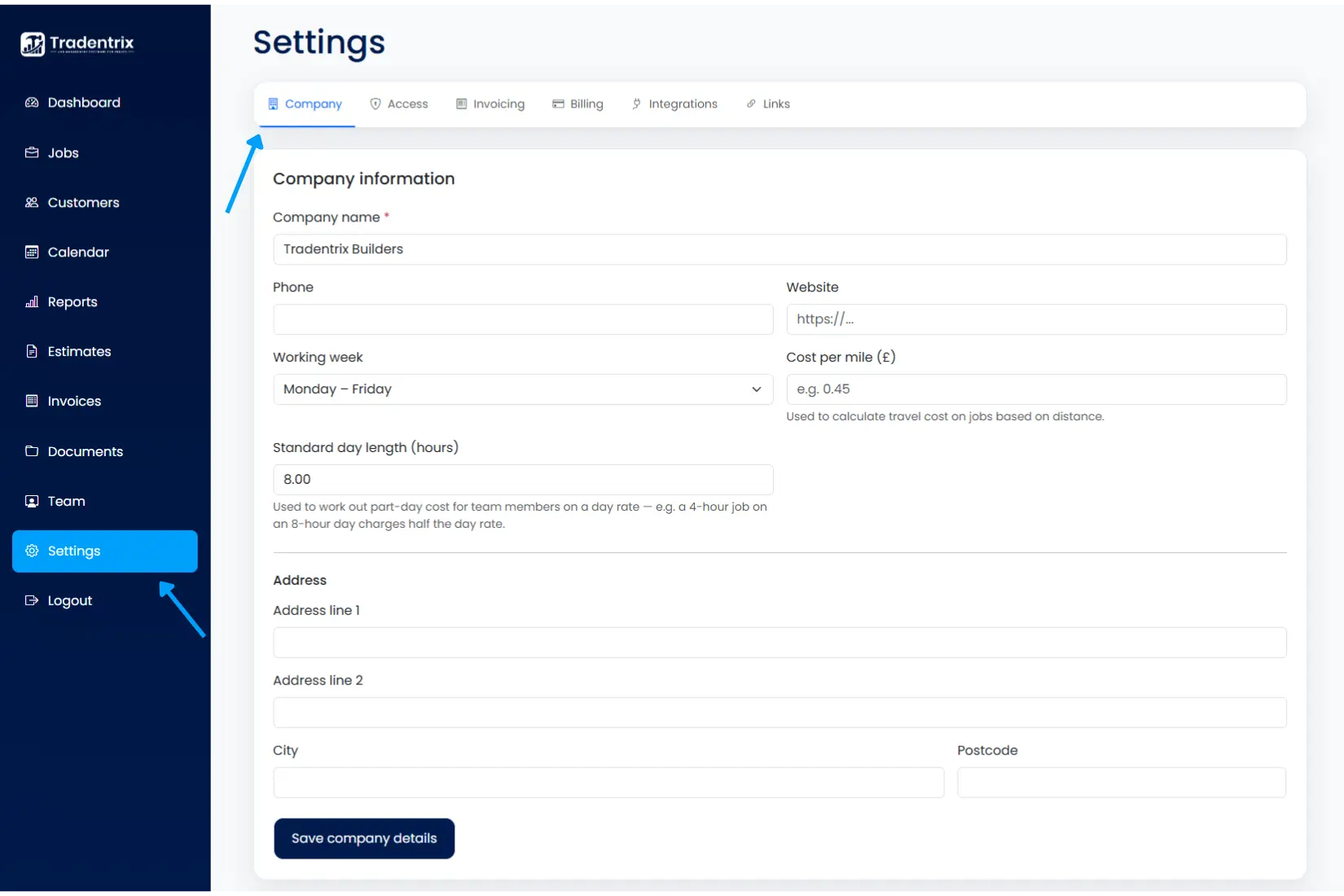
Your core business details: name, phone, website, working week, cost per mile and standard day length. The working week and standard day length feed into how job durations and travel costs get calculated. Your address also lives here.
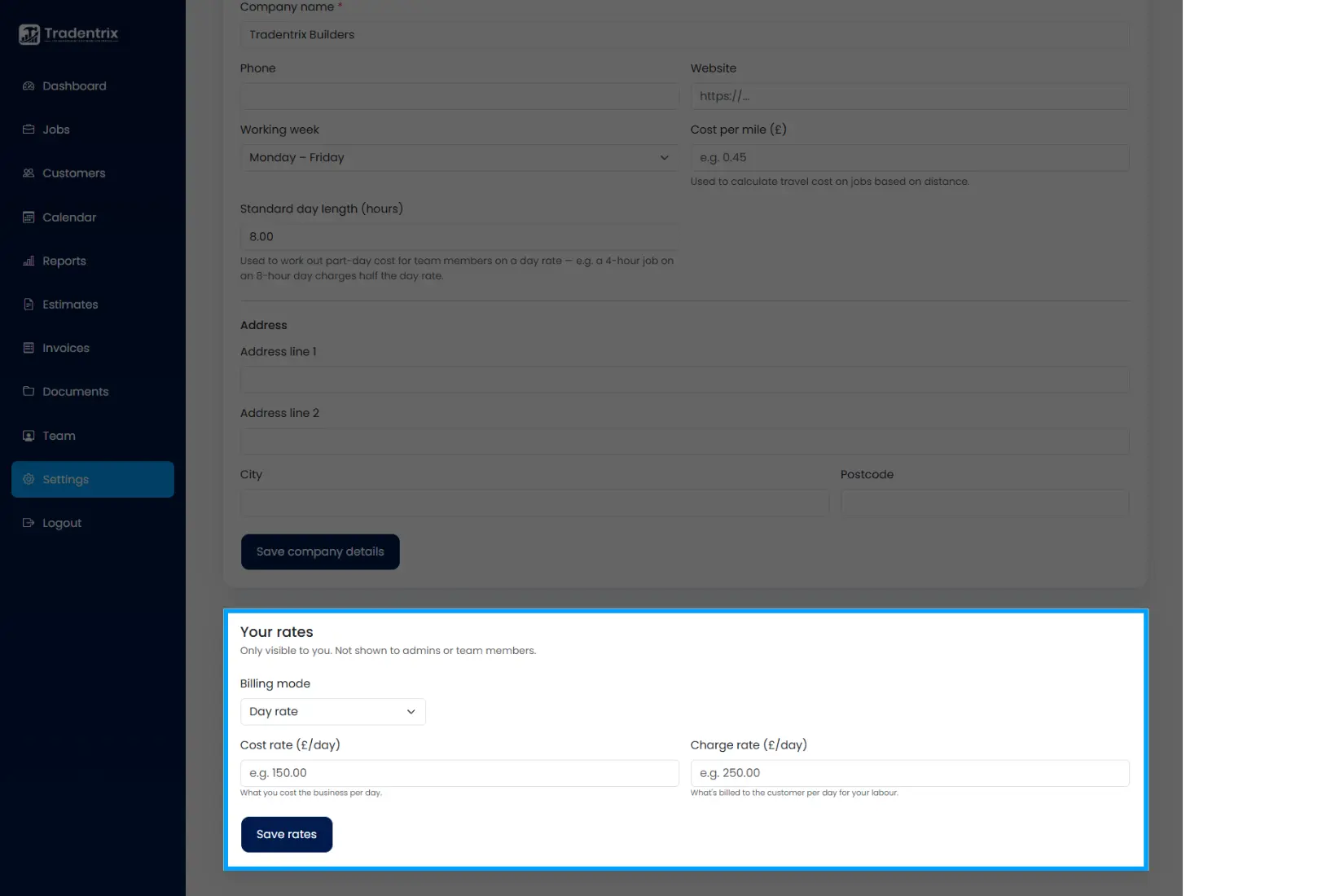
If you're the owner, you'll also see a "Your rates" section on this tab. It's private to you and not shown to Admins or team members. It sets your own cost rate (what you cost the business) and charge rate (what's billed to customers for your time), either as a day rate or an hourly rate.
Access
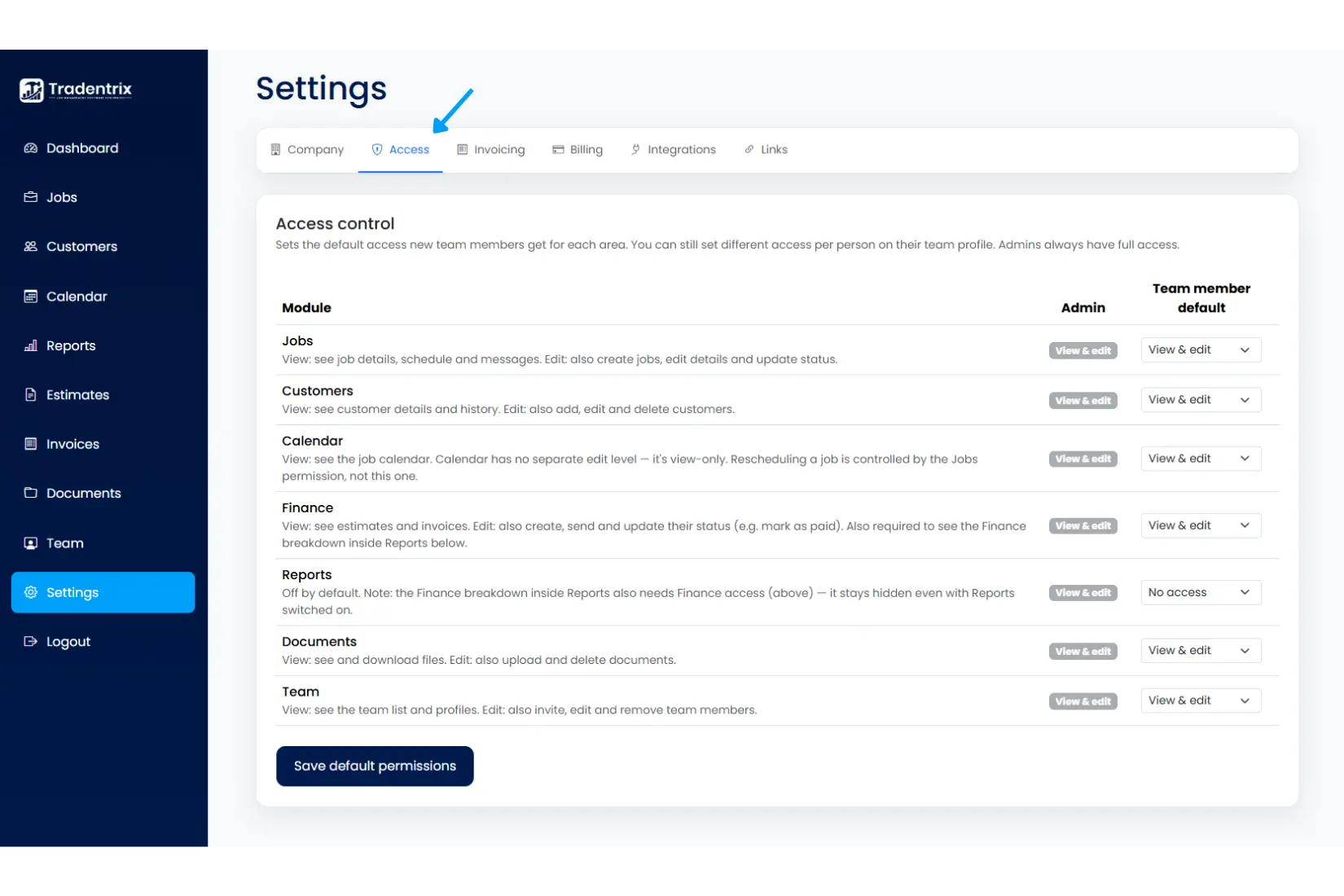
Sets the default permission level new team members get for each area of Tradentrix: Jobs, Customers, Calendar, Finance, Reports, Documents and Team. Choose "No access", "View only" or "View & edit" per module. Admins always have full access and aren't affected by this table.
This is just the default. You can still give an individual team member different access on their own profile if they need more or less than the rest of the team.
Invoicing
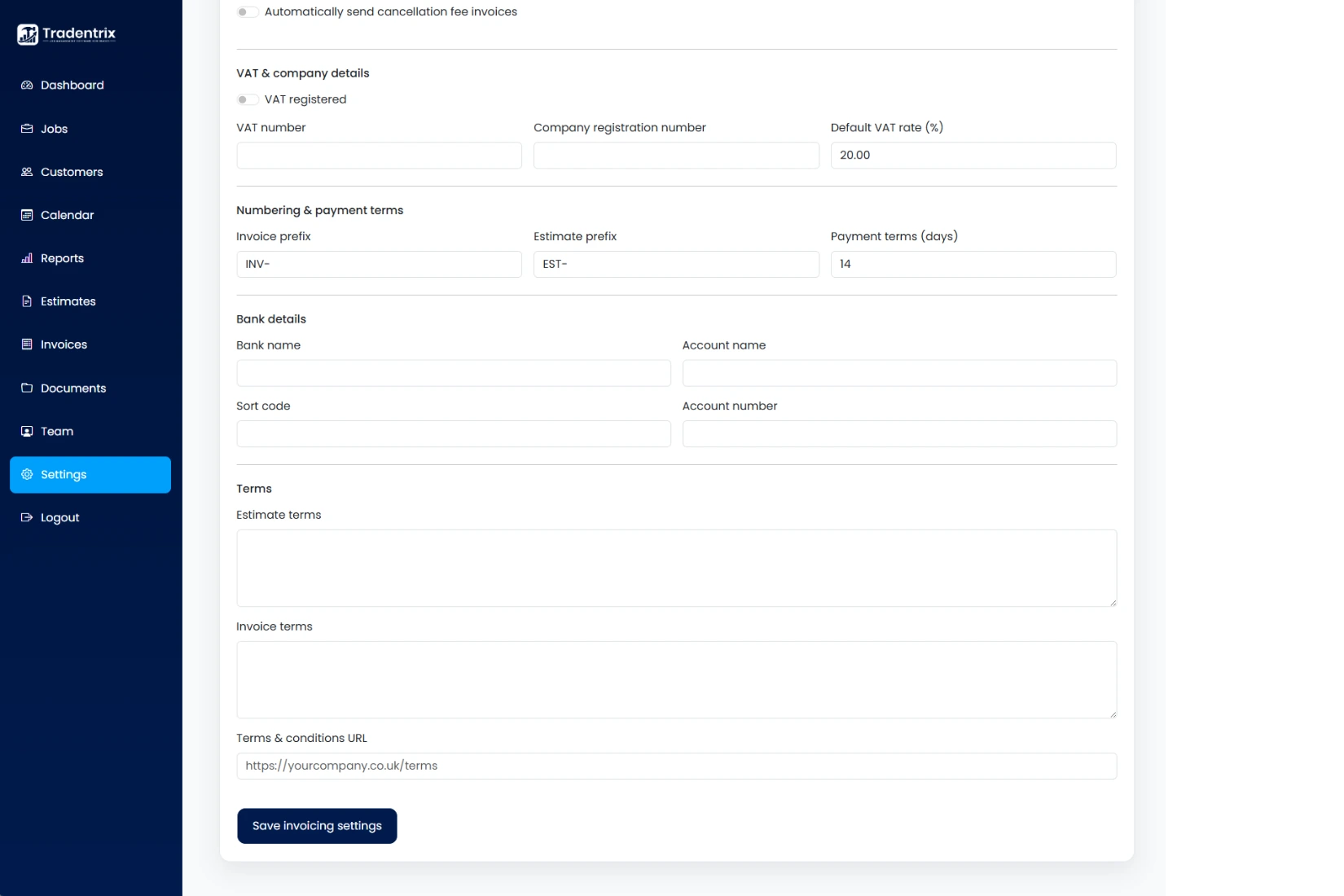
Everything that appears on your estimates and invoices. Depending on your plan this can include a brand logo and a header colour for your documents, plus automatic cancellation fee invoices for jobs cancelled within a notice period you set.
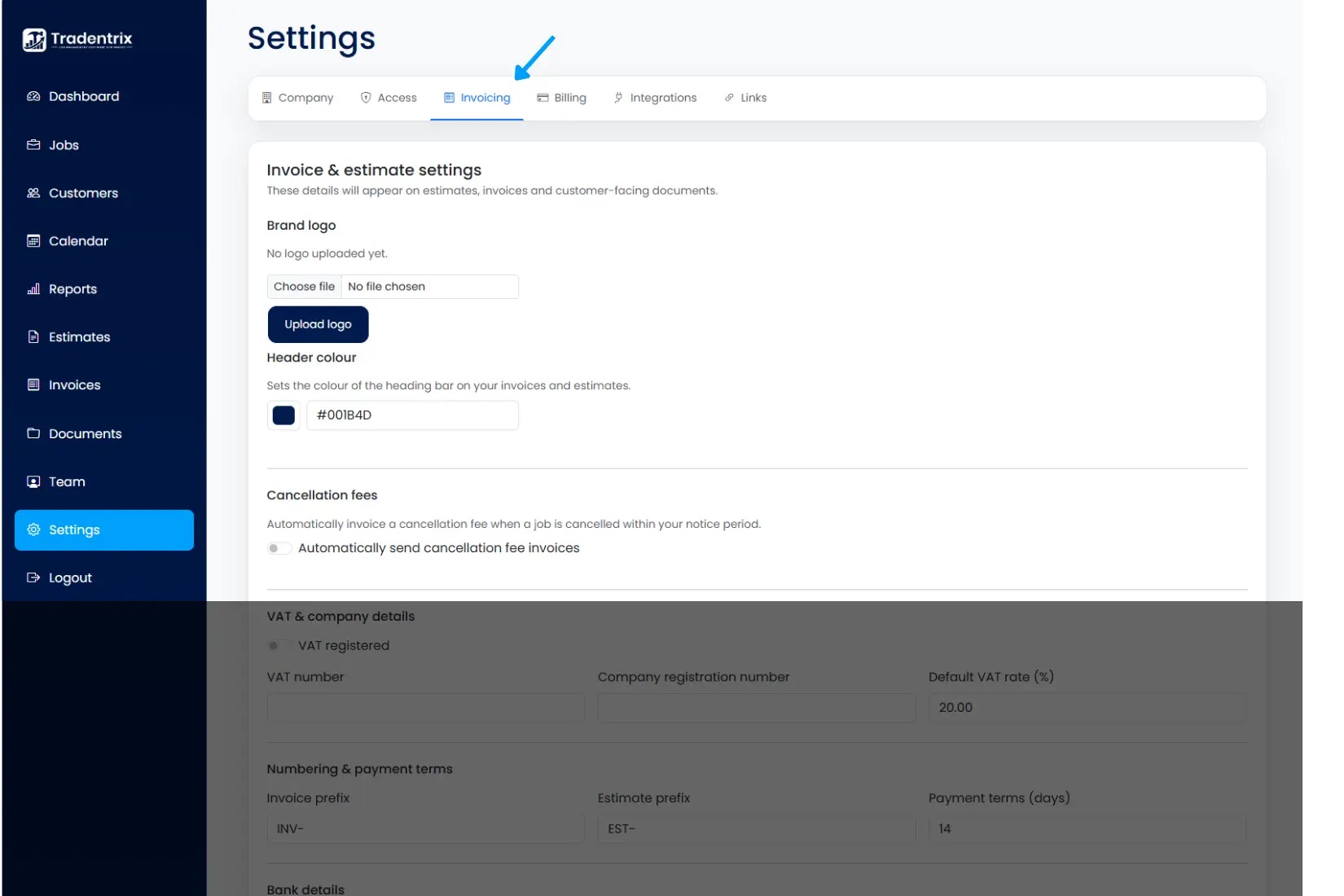
Below that: VAT registration and your default VAT rate, your invoice and estimate numbering prefixes, payment terms, bank details for customers to pay into, and the terms and conditions text shown on your documents.
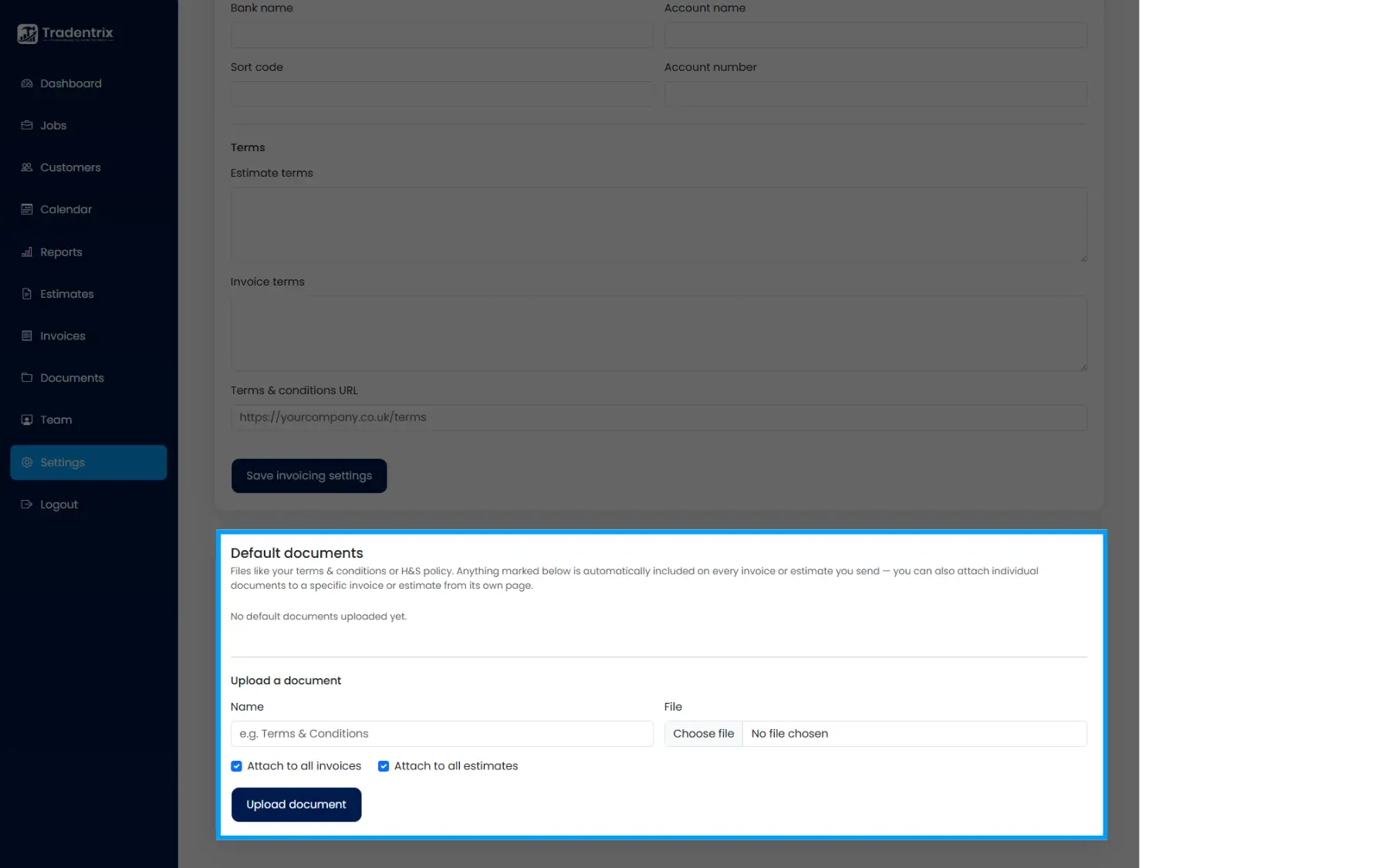
Further down, you can upload default documents, like your terms and conditions or H&S policy, and choose whether each one goes out with every invoice, every estimate, or both. See the Invoices guide for how these show up to customers.
Billing
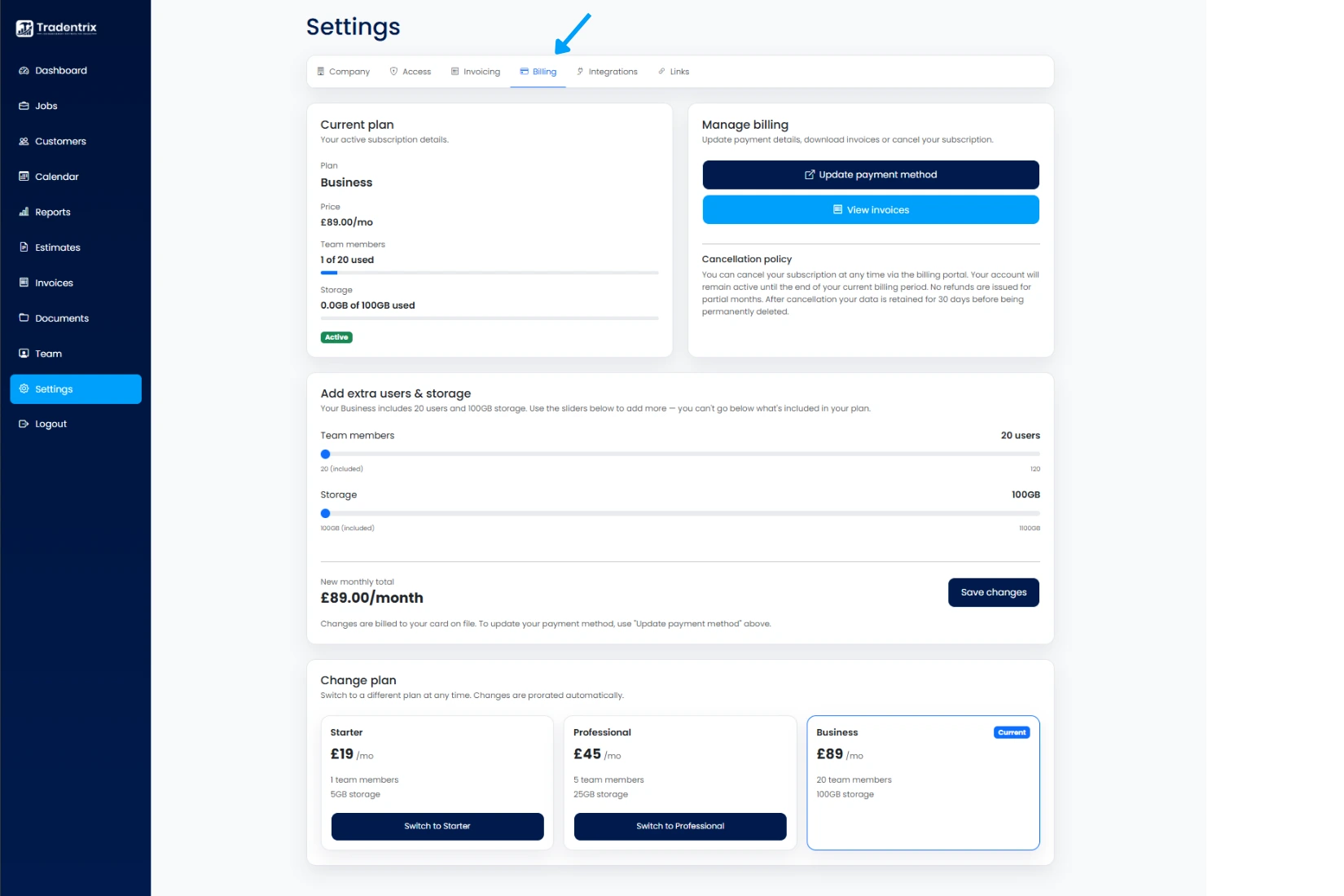
Your current plan, how many team members and how much storage you're using against your limits, and the status of your subscription. "Update payment method" and "View invoices" open Stripe's billing portal to manage your card and download receipts.
Plans that support it also let you add extra users or storage with a couple of sliders, priced on top of your base plan. You can switch to a different plan entirely at any time from the "Change plan" section. Nothing is charged or refunded straight away, Stripe works out the difference and adds it to your next regular invoice.
Integrations
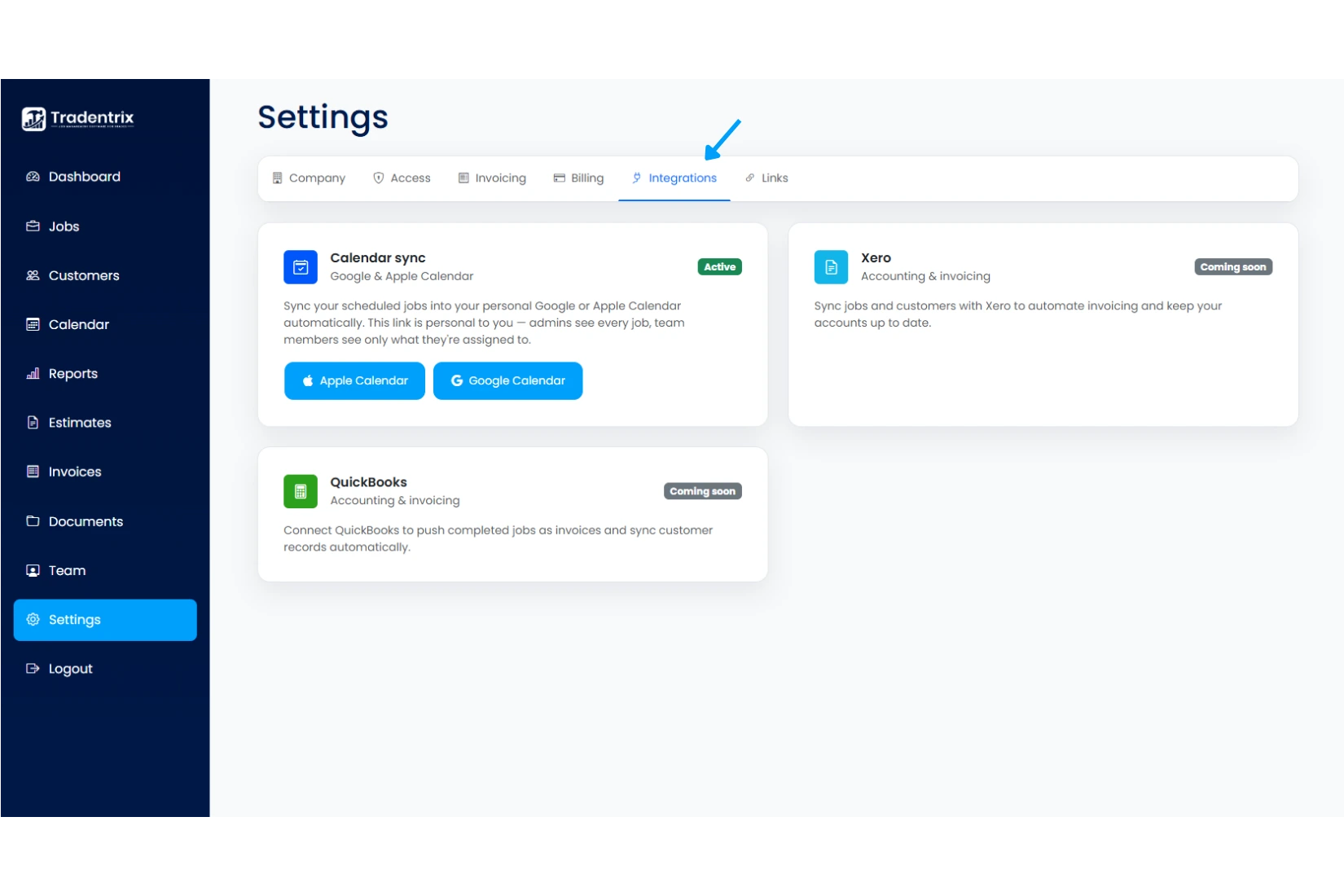
Calendar sync gives you a personal feed link for Google or Apple Calendar, so your scheduled jobs show up in your own calendar app automatically. Admins see every job on the feed, team members only see what they're assigned to.
You can also connect QuickBooks Online here. Once connected, invoices and estimates can sync across automatically when sent, or manually from their own page, see the Invoices guide for how that works. Xero integration is coming soon.
Links
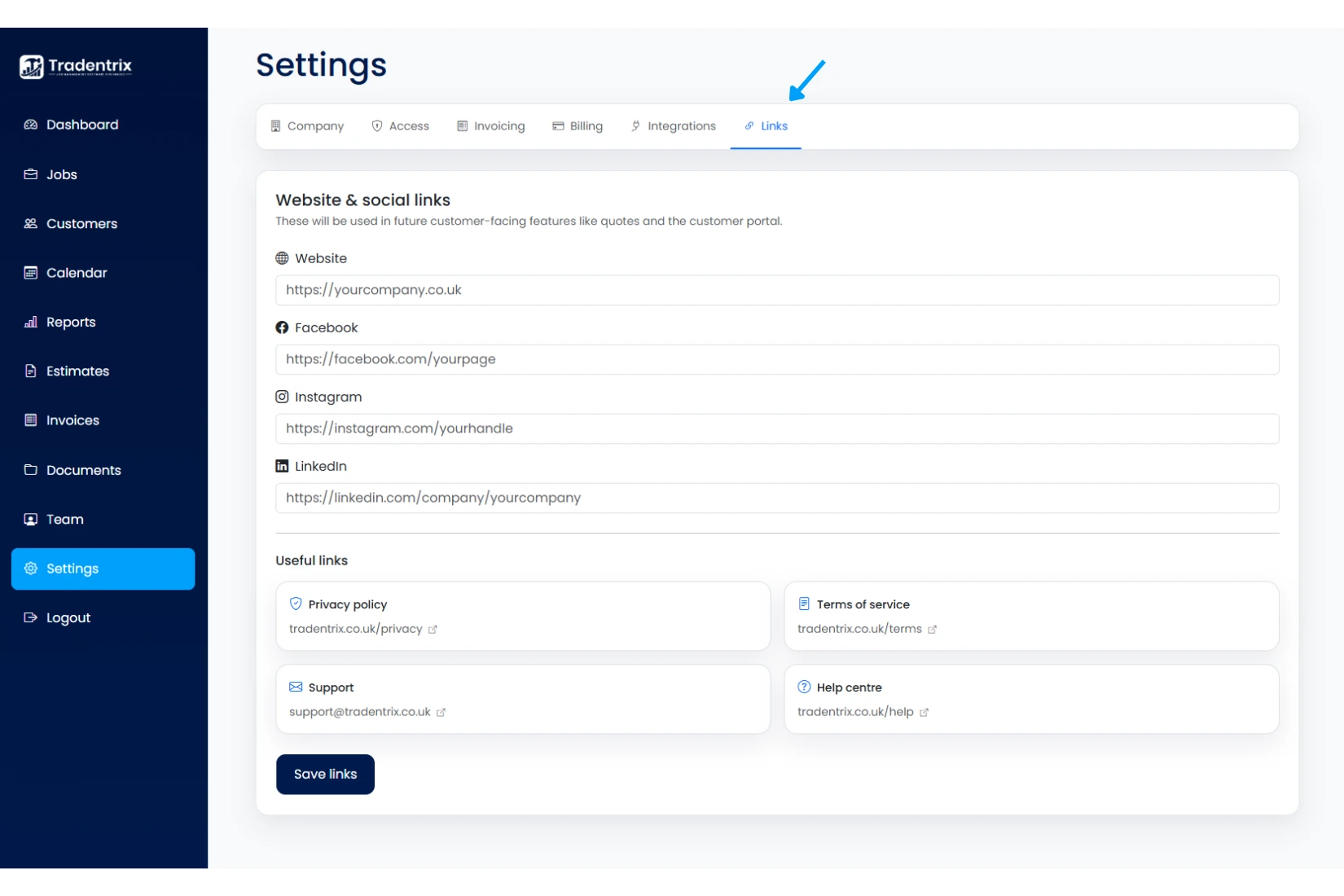
Your website and social media links, saved here for use in customer-facing features like quotes and the customer portal. This tab also has quick reference links to Tradentrix's own privacy policy, terms of service, support email and help centre.
Referrals
Only visible to the account owner. You have your own referral code, shown here along with a copy button. Share it with other trade businesses when they sign up for Tradentrix.
When someone uses your code at checkout, they get 10% off their first invoice automatically. Once they've been an active, paying customer for 3 months, you get a free month credited to your own account, applied straight to your next invoice. You can refer as many companies as you like with the same code, and this tab keeps a running list of everyone you've referred and their status: pending, qualified, or expired if they didn't stick around.