

Knowledge Base
Tradentrix's knowledge base walks you through everything from signing up your account to running your day-to-day work from the dashboard, covering jobs, customers, calendar, invoicing and more.
Dashboard guides
Need help using the dashboard?
Useful information
Other questions about the service?
Calendar
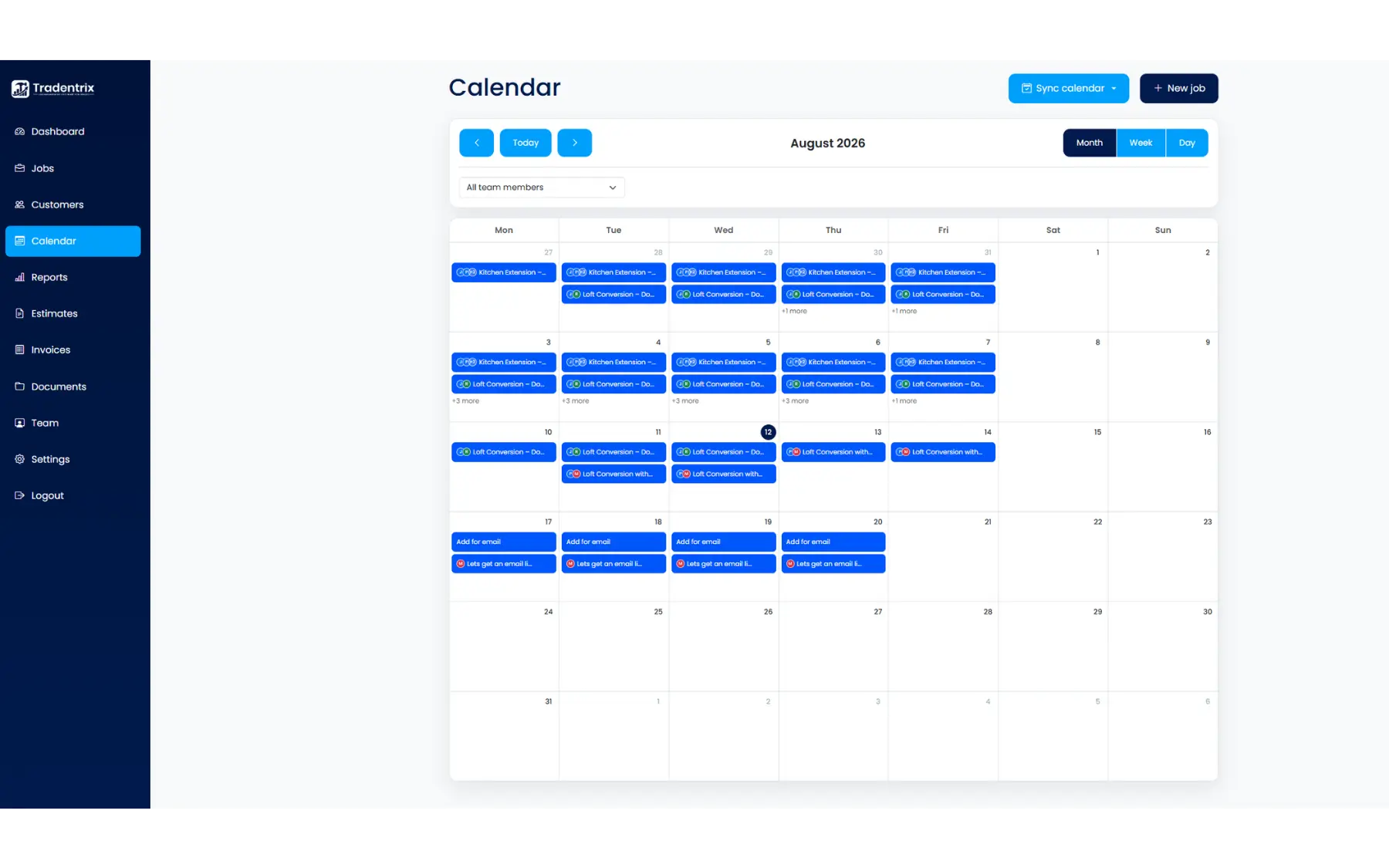
The calendar shows every scheduled job in one place, with month, week and day views, and a way to sync it to your own phone or computer calendar.
The three views
Switch between Month, Week and Day using the buttons above the calendar. Month view gives you the widest overview, so it's hidden on mobile in favour of Week view, which the calendar switches to automatically on smaller screens. Each view only shows jobs on your company's working days, based on the working week set in Settings.
Navigating the calendar
Use the arrows either side of the date heading to move backwards and forwards, and "Today" to jump straight back to the current month, week or day. Admins also get a team member filter here, letting them view "All team members" or narrow the calendar down to a single person's jobs.
Viewing a job
Click any job on the calendar to open a quick summary: its title, reference, status and priority, the customer, who's assigned, and the scheduled start time. From there, "View job" takes you through to the full job page.
Syncing your calendar
The "Sync calendar" button gives you a personal feed of your scheduled jobs to add to your own calendar app. Admins see every job on their feed, team members only see what they're assigned to. This can also be found under Settings, in the Integrations tab.
Apple Calendar
Click "Apple Calendar" in the Sync calendar menu. This hands straight off to your Calendar app to subscribe, no extra steps needed.
Google Calendar
Click "Google Calendar" to open a step-by-step guide: copy your calendar link, click "Open Google Calendar" to jump straight to Google's "Add calendar from URL" page, then paste the link there and click "Add calendar".
Outlook and others
Click "Copy link (Outlook, etc.)" to copy your feed link, then paste it into any calendar app that supports subscribing to a URL.
Give it time to update
Once subscribed, your jobs keep syncing automatically, you don't need to reconnect or re-copy the link. New and changed jobs don't appear instantly though. Apple, Google and Outlook each check subscribed calendars on their own schedule rather than updating in real time, so a change can take a little while, sometimes up to 24 hours, to show up. This is normal behaviour for any subscribed calendar, not something specific to Tradentrix.