
Knowledge Base
Tradentrix's knowledge base walks you through everything from signing up your account to running your day-to-day work from the dashboard, covering jobs, customers, calendar, invoicing and more.
Dashboard guides
Need help using the dashboard?
Useful information
Other questions about the service?
Jobs
Jobs are the centre of Tradentrix. Every estimate, invoice, document and message is tied to one. Here's how to create one, how recurring jobs work, and a full tour of the job page.
Creating a job
From the Jobs list, click "New job" to open the create form. It's split into a few parts:
- Customer: search for and link an existing customer. Their address auto-fills the Site Address section below, though you can still edit it if the job is somewhere else.
- Job Details: title, description, priority and job type.
- Scheduling: the scheduled start and finish date and time.
- Site Address, Site Contact & Access: where the job is, who to speak to on site, and any access notes (parking, gate codes, key safes).
- Financial (owner only): material cost, distance to site and a quoted price, used to work out the job's profit.
- Documents and Assign Team: attach any files up front and pick who's working on it.
At the bottom you can "Save as draft" or "Save & schedule". A draft won't appear on the calendar and nobody gets emailed. Saving as scheduled puts it on the calendar and emails every assigned team member straight away.
Recurring jobs
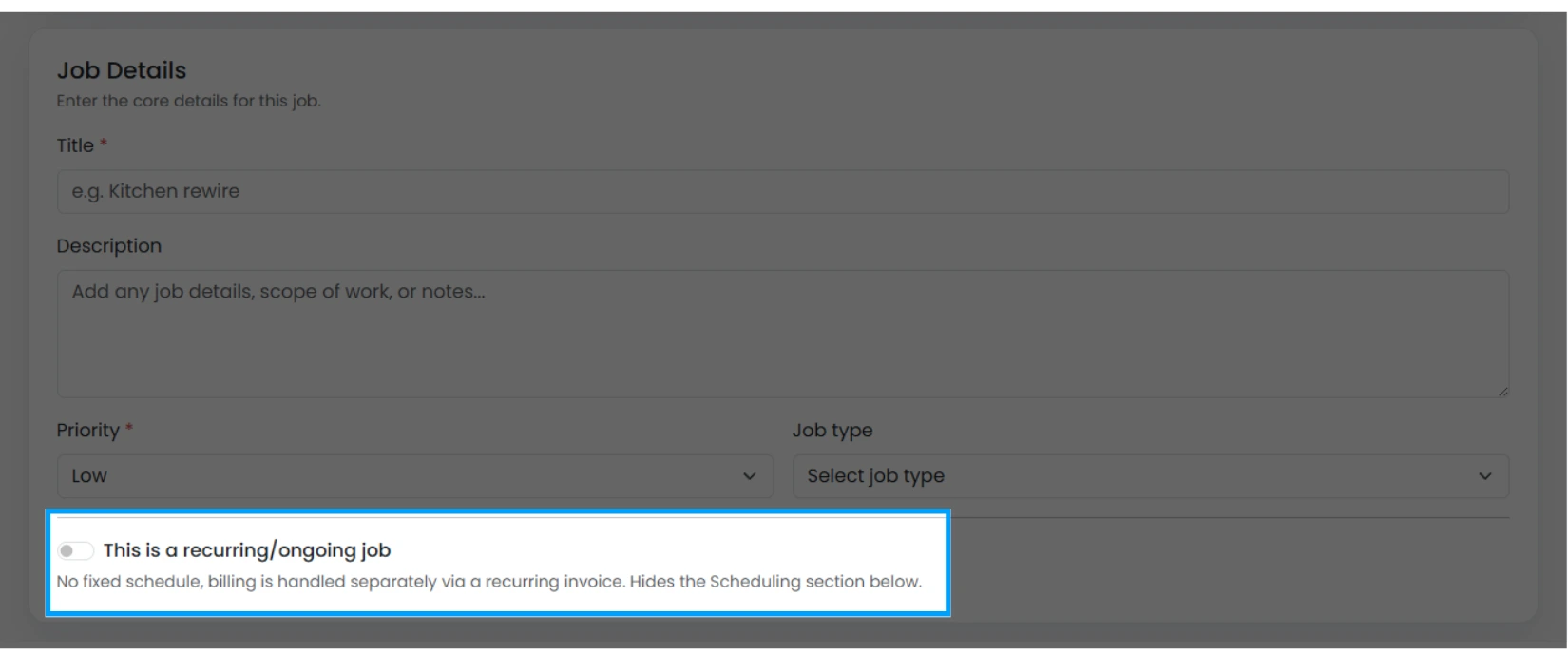
If a job is an ongoing arrangement rather than a one-off (a monthly maintenance visit, for example), tick "This is a recurring/ongoing job" in Job Details. It hides the Scheduling section and the quoted price field, since there's no single fixed date or price for an ongoing job. Material cost and distance stay visible, along with an added "Estimated hours per visit" field, since those are used to work out the cost of each visit.
Marking a job as recurring doesn't set up billing on its own. The actual invoicing schedule (how often and when an invoice goes out) is set up when you create an invoice for the job, covered in the Invoices guide. A job flagged this way shows a "Recurring" badge on the job page once billing is set up.
The job page
Once a job is created, its page brings together everything about it. Here's what each section covers.
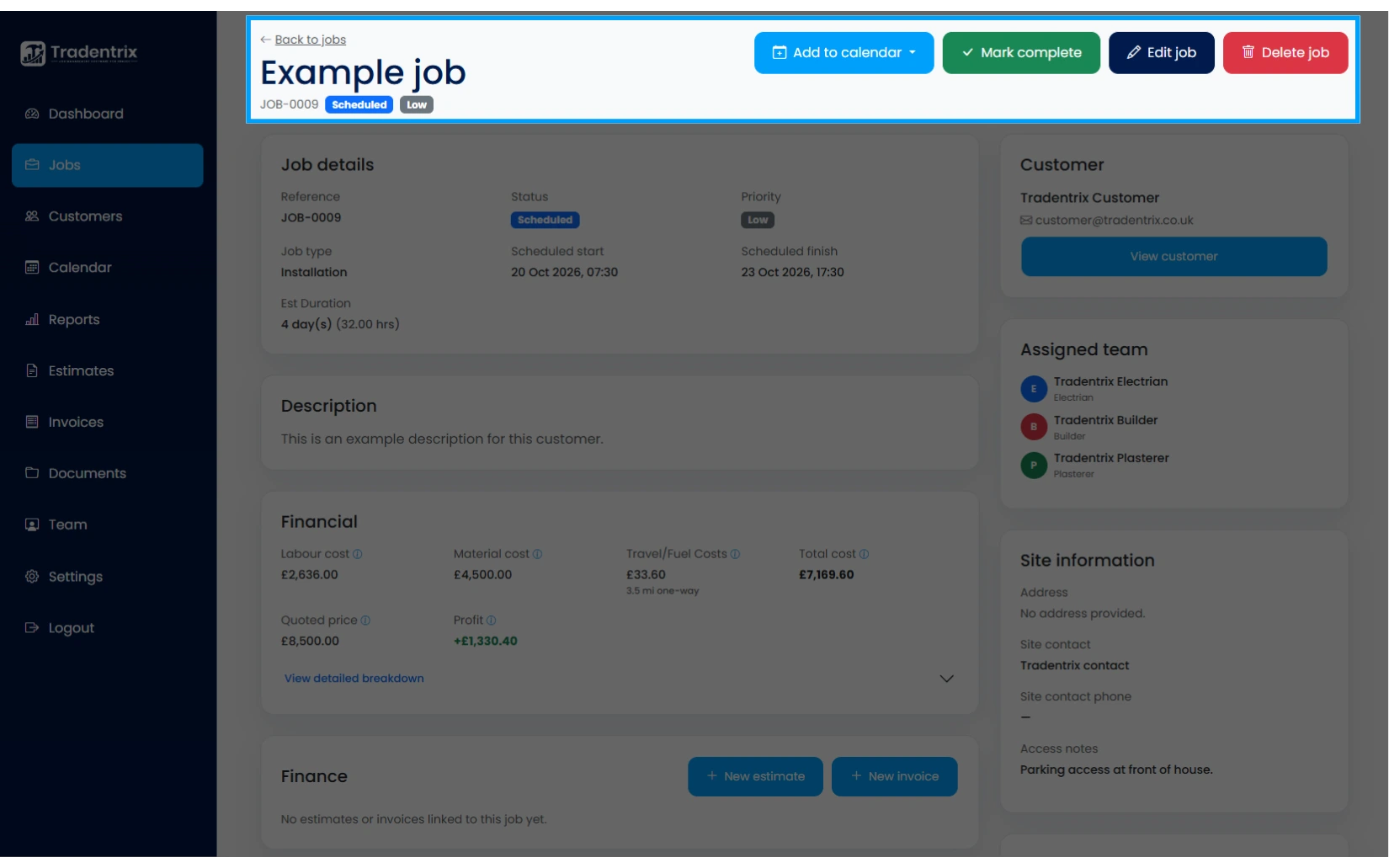
Header and actions
The job title, reference number, status and priority. If the job is scheduled, "Add to calendar" adds it to your own Google or Apple/Outlook calendar. Owners and Admins also get "Mark complete", "Edit job" and "Delete job". Deleting a job that's within its cancellation notice period gives you the choice to send a cancellation fee invoice instead of a plain delete, if your company has that set up.
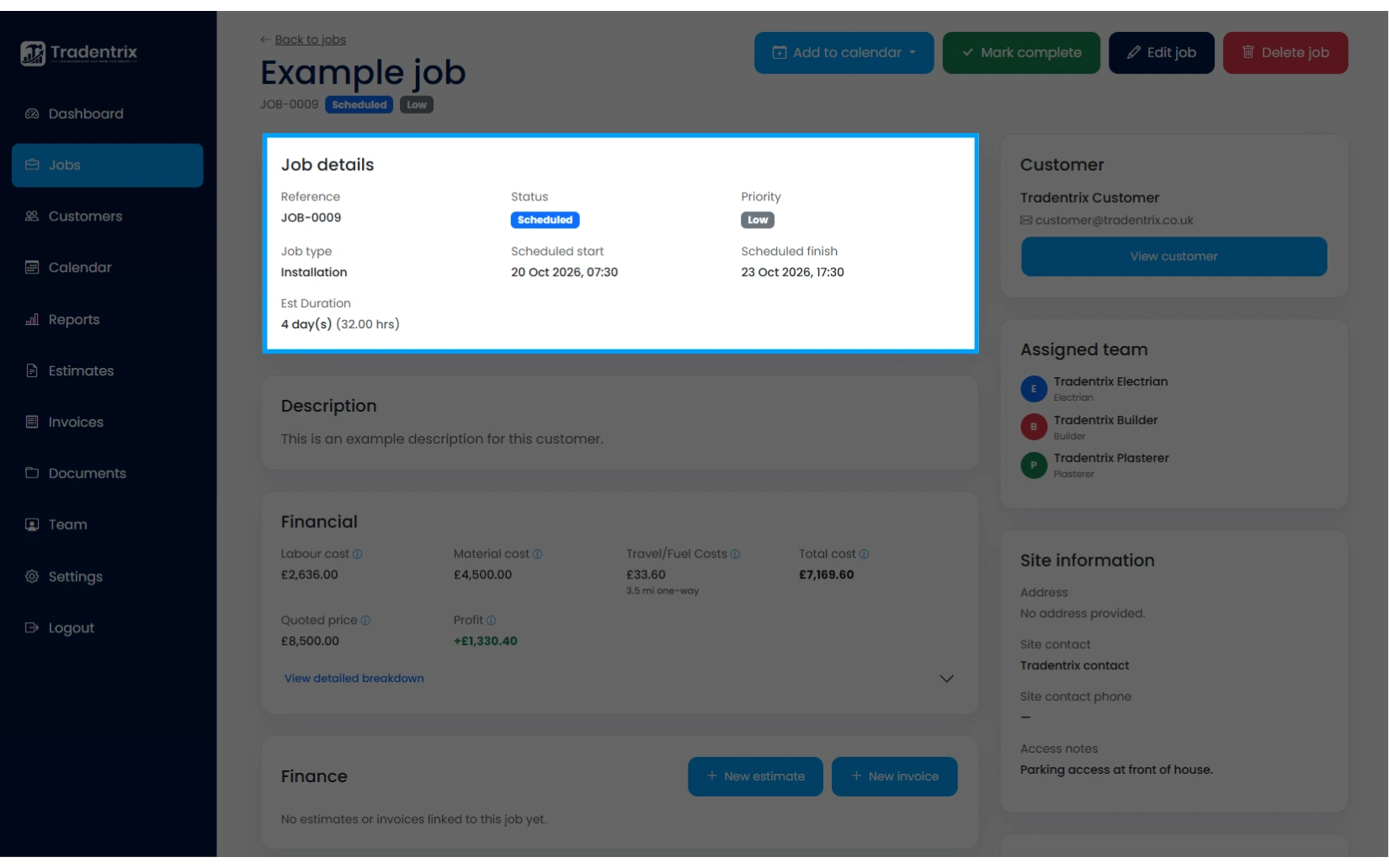
Job details
Reference, status, priority, job type, scheduled dates and estimated duration you entered when creating the job.
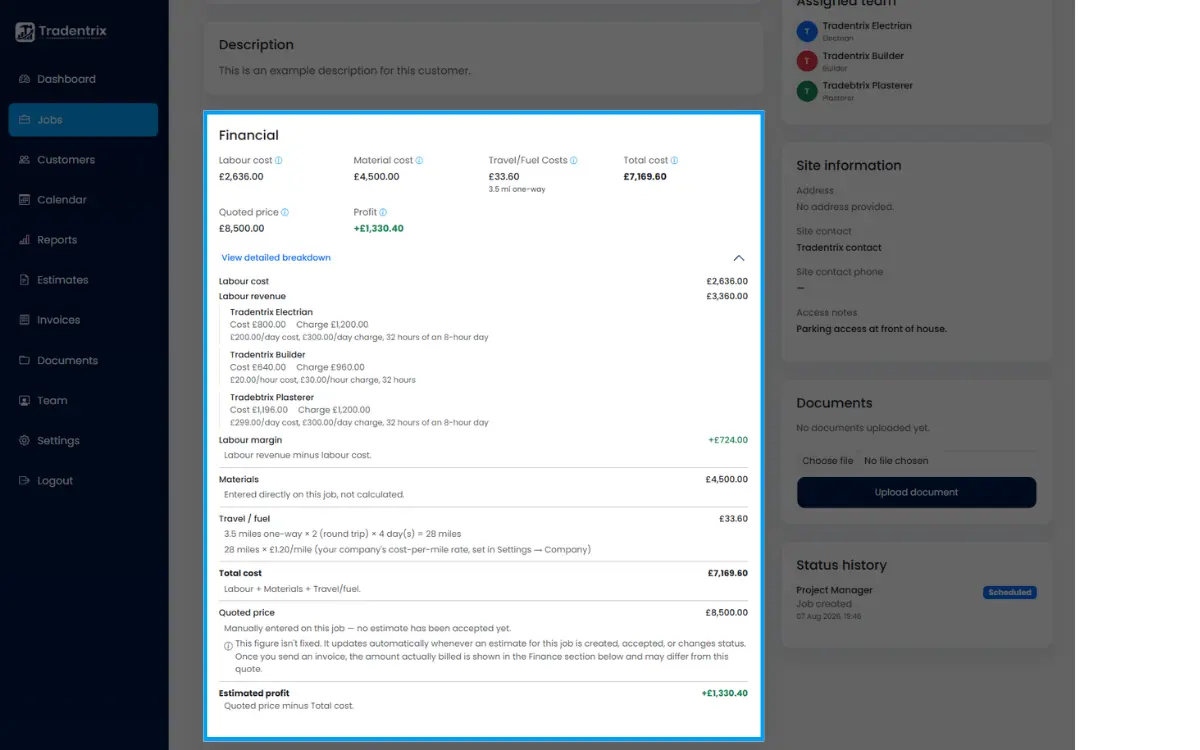
Financial
Owner only. Shows labour, material and travel cost, the total cost, the quoted price and the resulting profit, with a detailed breakdown you can expand. For recurring jobs this section works differently: it shows the cost per visit and how many visits have been billed so far, and the quoted price becomes the running total of every invoice raised for the job.
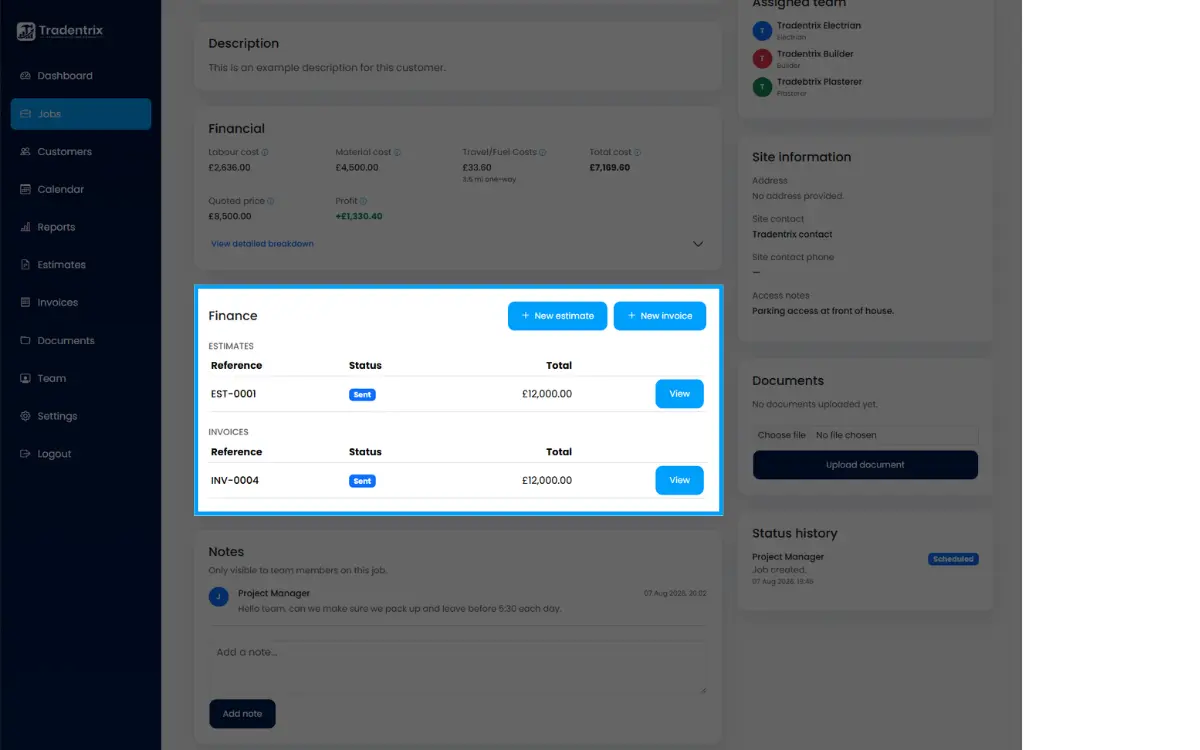
Finance
Any estimates or invoices linked to the job, with buttons to create a new one directly from here. Only invoices that have been sent or paid are listed.
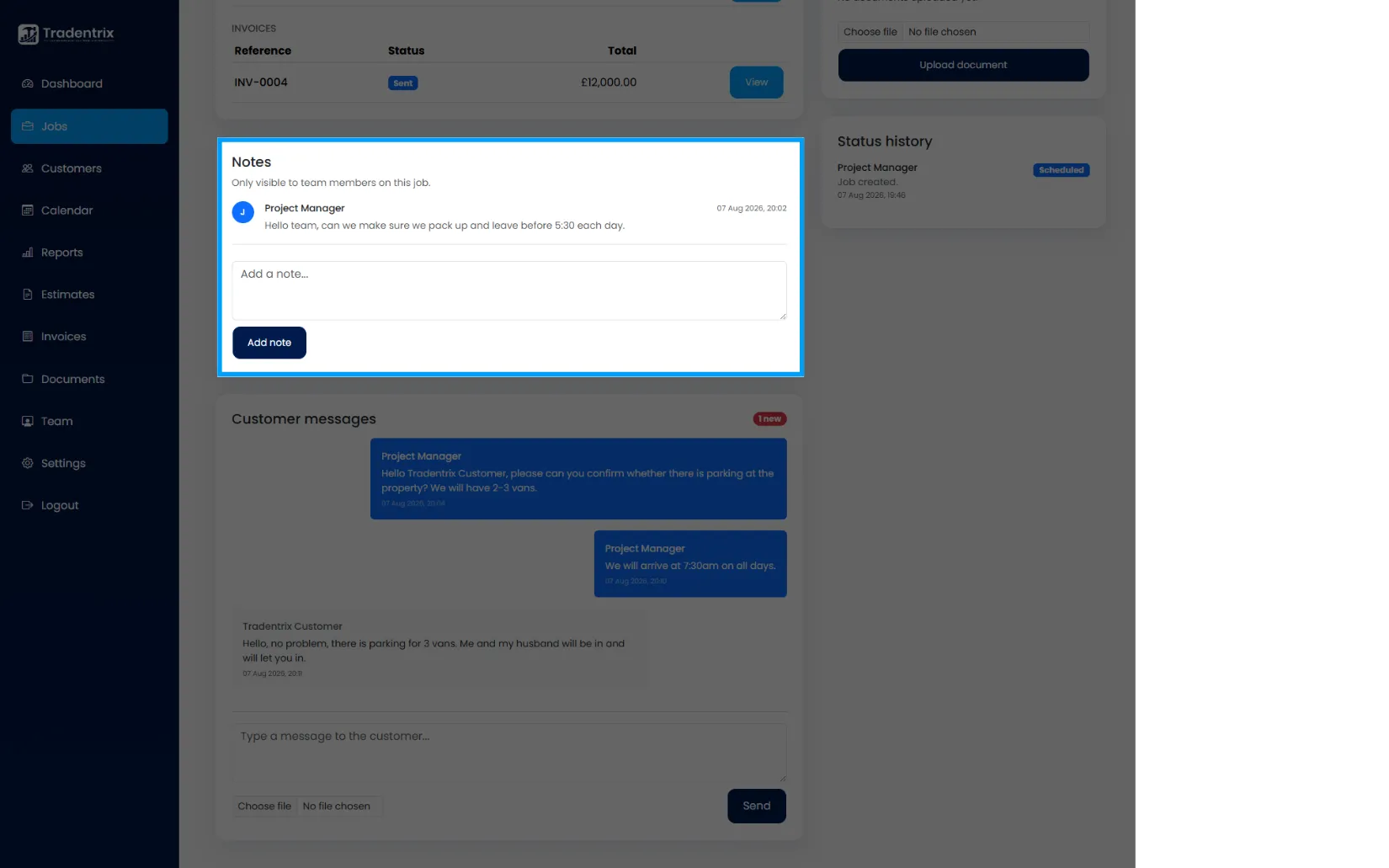
Notes
Internal notes between team members assigned to the job. Customers never see these.
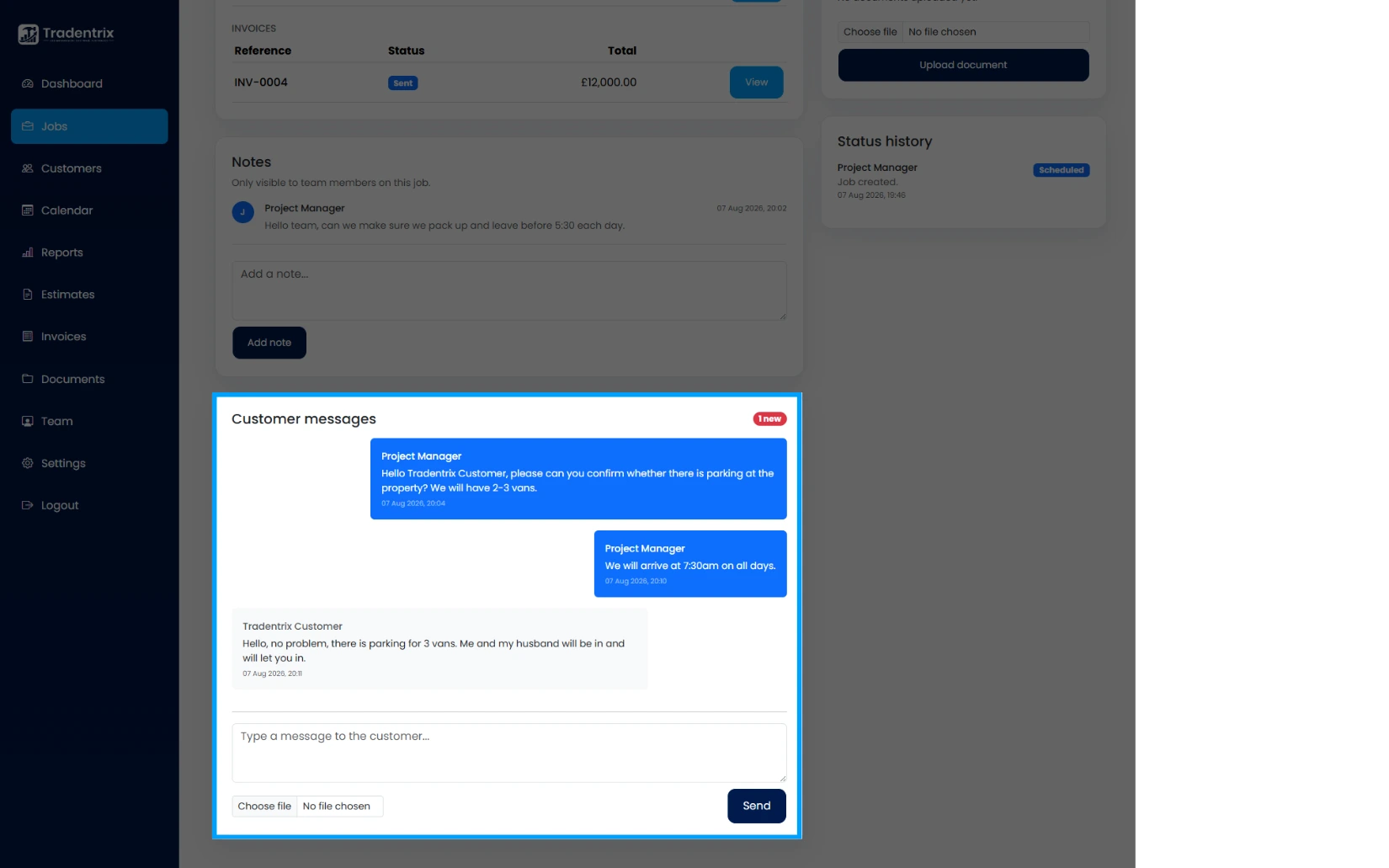
Customer messages
A direct line to the customer through the customer portal, if your plan and settings have customer messaging switched on. This is separate from the internal Notes above.
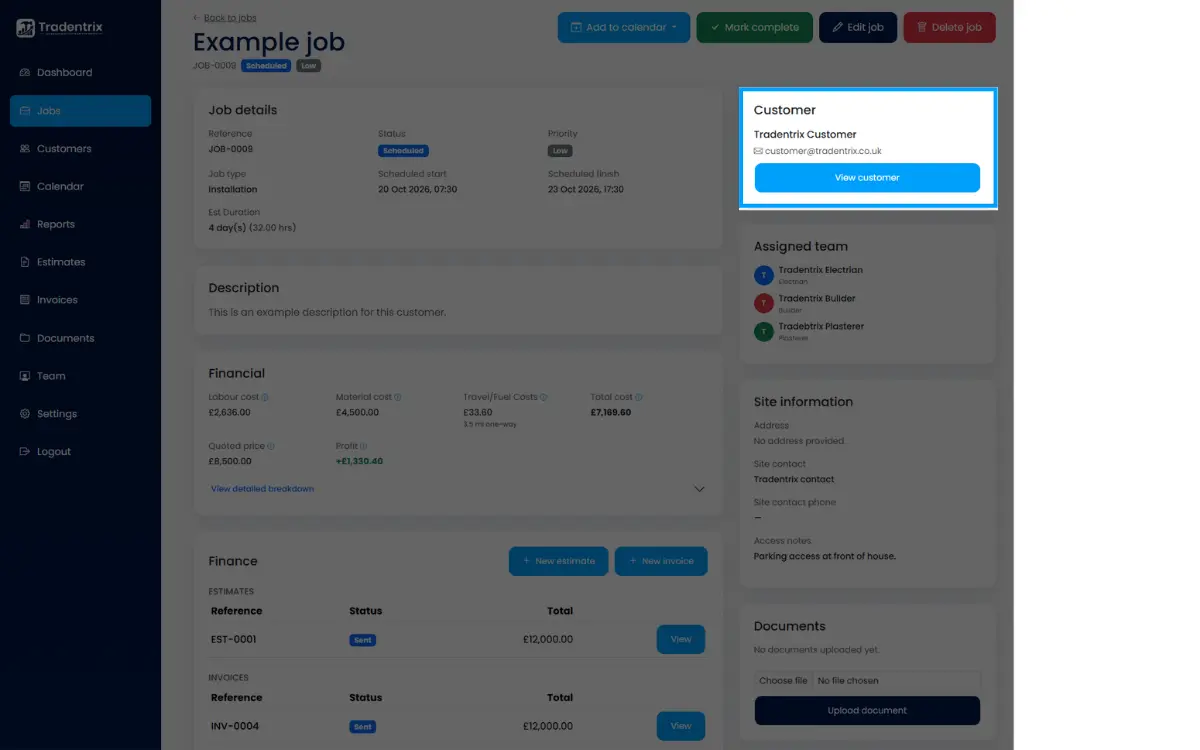
Customer
The customer linked to the job, with a link through to their full profile.
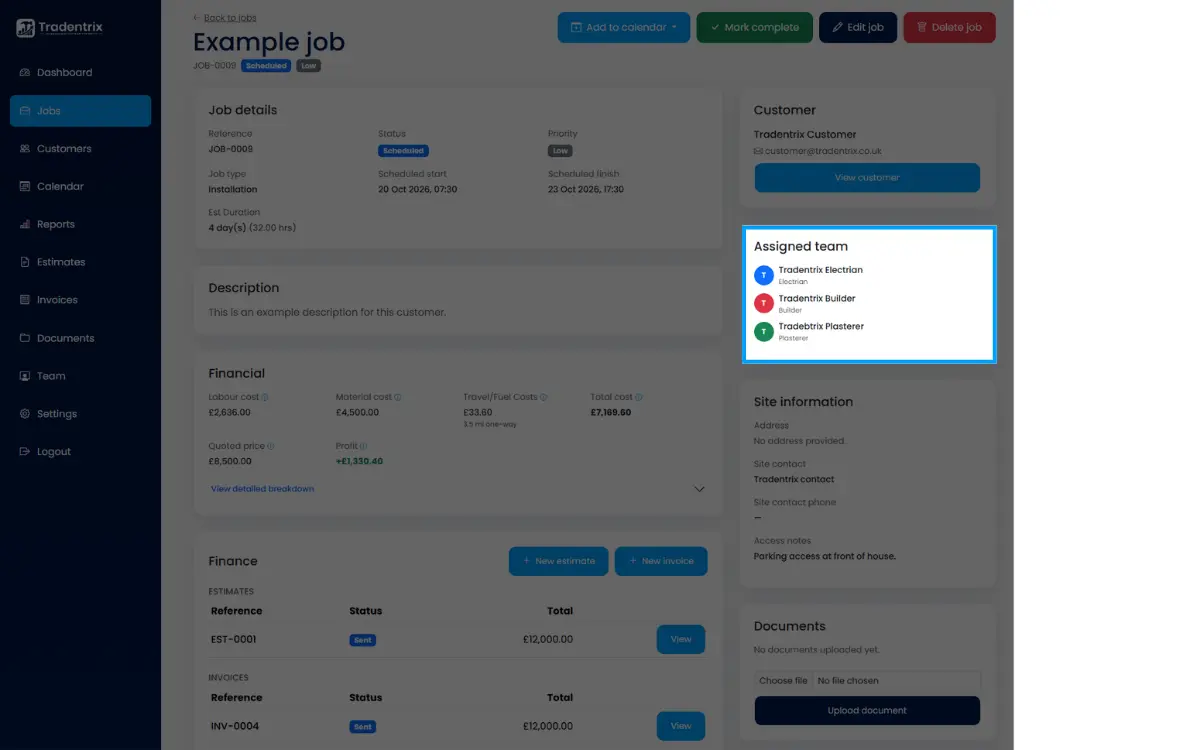
Assigned team
Everyone assigned to work on the job.
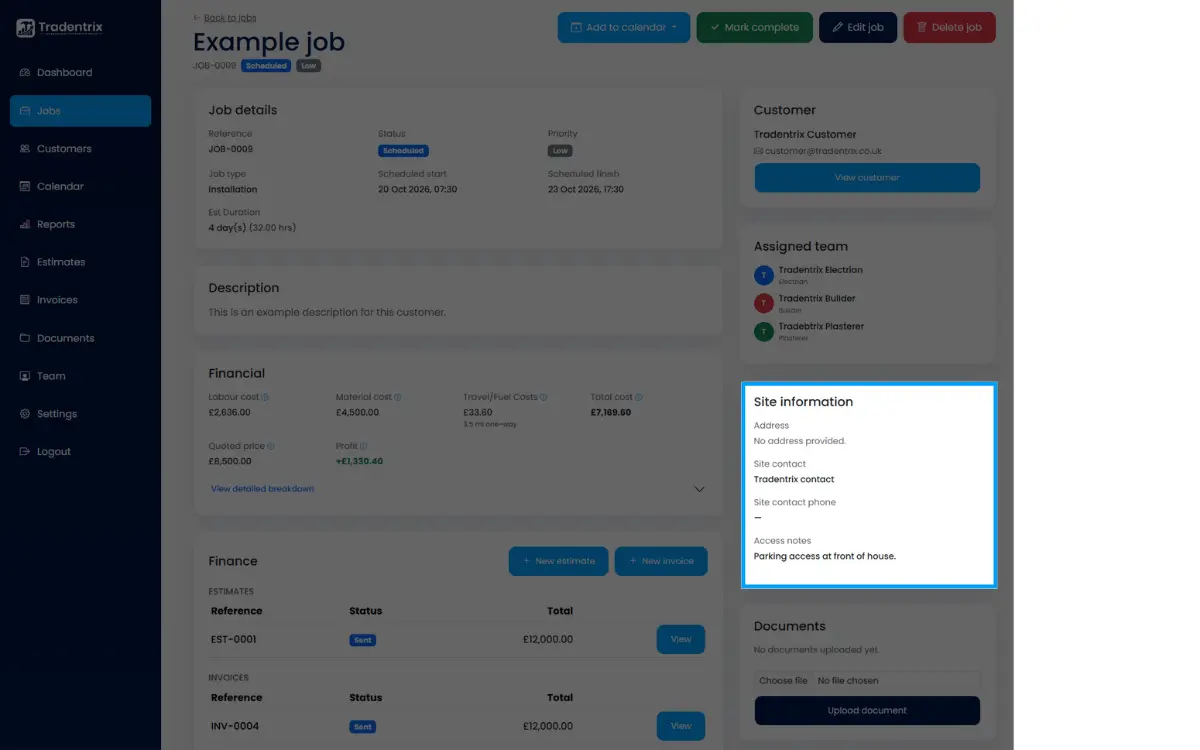
Site information
The job's address, site contact name and phone number, and any access notes, with a "Get directions" link straight to Google Maps.
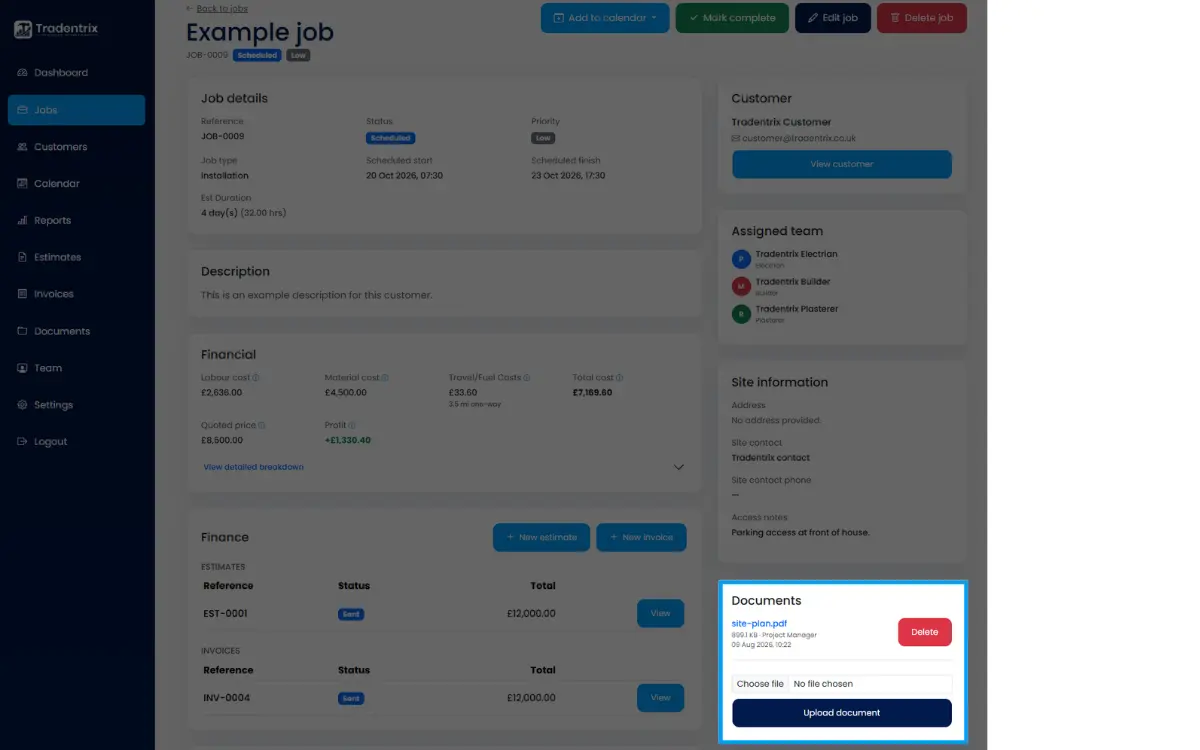
Documents
Files attached to the job, viewable and downloadable by anyone with access. Uploading and deleting depends on your document permissions.
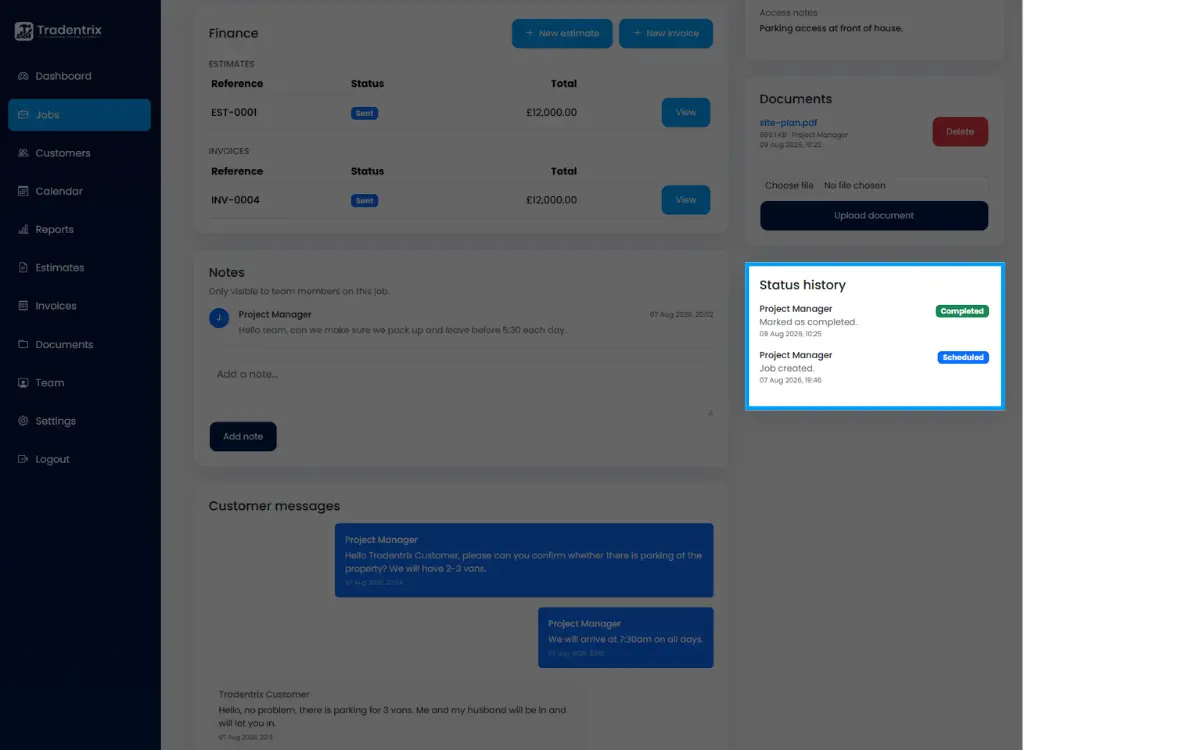
Status history
A log of every status change on the job, who made it and when.